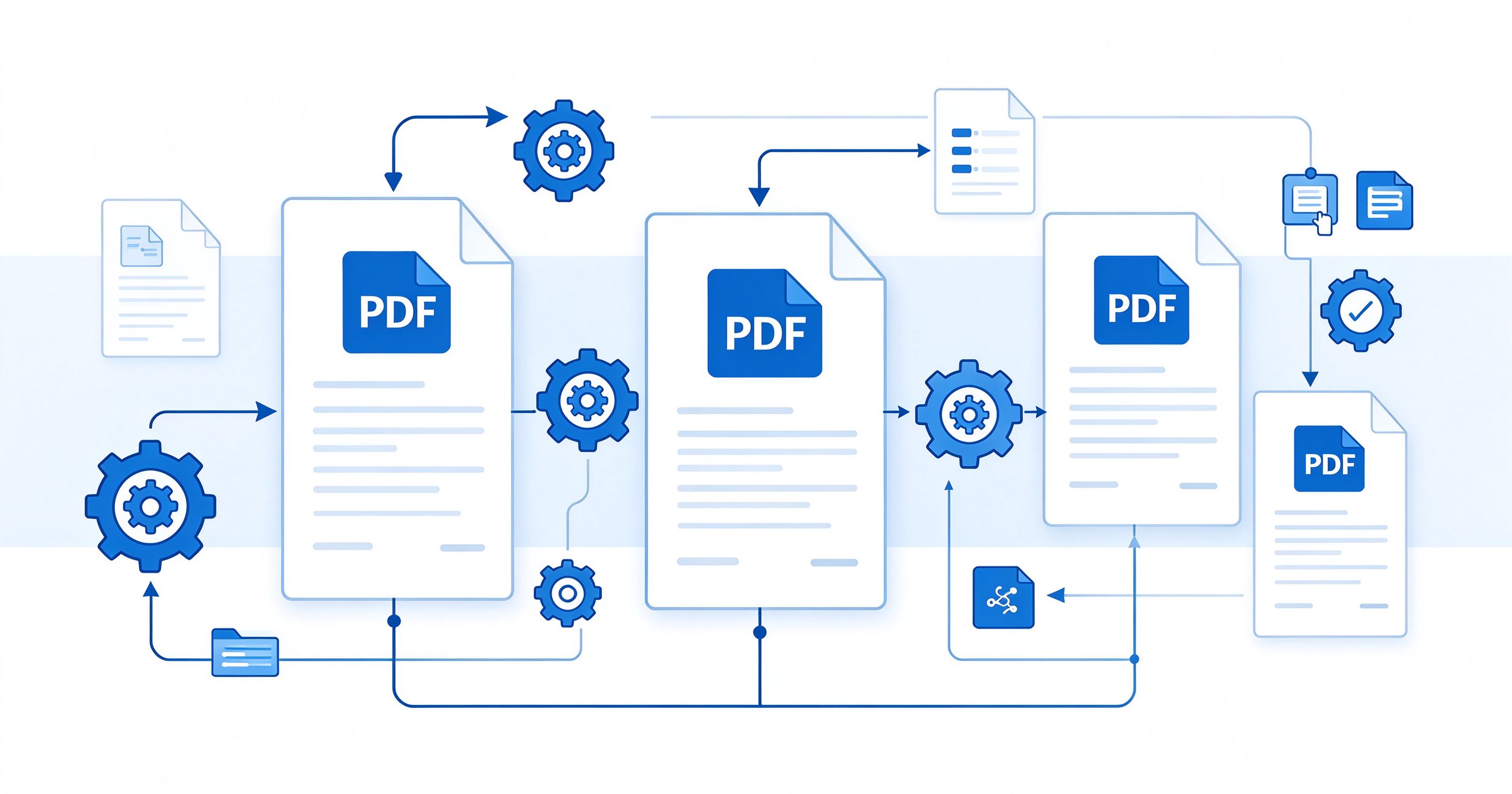
Introduction: Stop Wasting Time on Manual PDF Processing
If you've ever had to compress 50 invoices, merge 100 scanned pages, or convert 200 PDFs to Word, you know how painful it is to process files one by one. Clicking through the same dialog boxes over and over, waiting for each file to finish, and making sure you don't miss any — it's tedious, error-prone, and a massive waste of time.
The good news? You don't have to do it manually. Batch processing lets you handle hundreds of PDF files in one operation. In this guide, we'll walk through a complete workflow for batch processing PDFs, covering the most common tasks: compression, merging, conversion, renaming, and organization.
Whether you're an administrative assistant processing invoices, a lawyer organizing case files, a student managing lecture notes, or a business owner digitizing records, this guide will save you hours of work.
⚡ What You'll Learn
• How to batch compress 100+ PDFs in one click
• How to merge an entire folder of PDFs automatically
• How to batch convert PDFs to Word/Excel/JPG
• How to rename hundreds of files with a pattern
• How to organize and archive PDFs efficiently
• Tools for both beginners and power users
Before You Start: Preparation and Organization
The key to successful batch processing is preparation. Don't just point a tool at a messy folder and hope for the best. Spend 10 minutes organizing first, and you'll save hours later.
Step 1: Backup Your Files
Before any batch operation, always make a backup of your original files. Batch operations are powerful but unforgiving — if something goes wrong, you could overwrite or corrupt dozens of files at once. Create a copy of the entire folder and work on the copy, keeping the originals safe.
Step 2: Organize Your Folder Structure
Create a clear folder structure before processing:
/originals/— the source files (read-only, don't touch)/processing/— files currently being processed/output/— completed, processed files/errors/— files that failed processing (for manual review)
Step 3: Standardize File Names
Batch processing works best when files have consistent, descriptive names. Avoid names like "Document1.pdf", "Scan (3).pdf", or "final_final_v2.pdf". Instead, use a consistent pattern like:
YYYY-MM-DD_Description.pdf(e.g., 2026-09-01_Invoice_12345.pdf)ClientName_ProjectName_Date.pdfCategory_Subcategory_001.pdf(with leading zeros for proper sorting)
⚠️ Critical: Test with a Small Batch First
Never run a batch operation on all 100+ files without testing first. Pick 3-5 representative files, run the process, and verify the output is correct. Check file size, quality, naming, and that nothing was corrupted. Only once you're confident should you run the full batch.
Batch Compression: Shrink an Entire Folder of PDFs
Batch compression is the most common batch PDF task. Here's how to compress an entire folder of PDFs at once.
1 Using PDF24 Creator (Windows — Recommended)
PDF24 Creator has excellent batch compression support and is completely free.
- Open PDF24 Creator and select "Compress PDF" from the tool menu.
- Click "Add Files" and select all the PDFs you want to compress (Ctrl+A to select all in a folder).
- Alternatively, drag and drop an entire folder onto the window.
- Choose your compression settings (we recommend "Medium" for most cases).
- Click "Compress" and wait for all files to process.
- Click "Save All" to save all compressed files to your output folder.
Tip: PDF24 can process dozens of files simultaneously, and you can set it to automatically shut down your computer when done (useful for overnight batches).
2 Using Ghostscript (All Platforms — Power Users)
Ghostscript is the fastest and most powerful option for batch compression. It's command-line based but incredibly efficient.
Windows batch script (.bat):
@echo off

          mkdir output

          for %%f in (*.pdf) do (

            gs -sDEVICE=pdfwrite -dCompatibilityLevel=1.4 -dPDFSETTINGS=/ebook -dNOPAUSE -dQUIET -dBATCH -sOutputFile="output\%%f" "%%f"

          )

          echo Done!
Mac/Linux shell script:
mkdir -p output

          for f in *.pdf; do

            gs -sDEVICE=pdfwrite -dCompatibilityLevel=1.4 -dPDFSETTINGS=/ebook -dNOPAUSE -dQUIET -dBATCH -sOutputFile="output/$f" "$f"

          done

          echo "Done!"
Change /ebook to /screen for maximum compression or /printer for high quality.
Batch Merging: Combine Multiple PDFs Automatically
Need to combine 50 individual PDFs into one document? Here's how to do it efficiently.
Method 1: PDF24 Creator (GUI)
- Open PDF24 Creator and select "Merge PDF".
- Add all files you want to merge (drag and drop a folder works).
- Use the visual interface to reorder files if needed (sort by filename first for best results).
- Click "Merge" to combine all files into one.
- Save the merged document.
Method 2: Command Line (Ghostscript or PDFtk)
For merging a large number of files, the command line is faster:
Using Ghostscript:
gs -dBATCH -dNOPAUSE -q -sDEVICE=pdfwrite -sOutputFile=merged.pdf *.pdf
Using PDFtk (simpler syntax):
pdftk *.pdf cat output merged.pdf
Important: Files will be merged in alphabetical order. Make sure your file names sort correctly (use leading zeros like 001.pdf, 002.pdf, etc.).
Batch Conversion: Convert PDFs to Word, Excel, or JPG
Converting PDFs to other formats in bulk requires more care, as conversion quality can vary. Here are the best approaches.
Batch PDF to Word
- Best for accuracy: Adobe Acrobat Pro (paid) has excellent batch conversion.
- Free option: Use Google Drive's batch conversion — upload all PDFs, select them all, right-click, and "Open with > Google Docs". Then download as Word. This works well for text-heavy documents.
- Power user: Use Python with the
pdf2docxlibrary for scriptable batch conversion.
Batch PDF to Images (JPG/PNG)
Converting PDF pages to images is useful for presentations, web uploads, or OCR processing.
Using Ghostscript (fast, high quality):
gs -dNOPAUSE -dBATCH -sDEVICE=jpeg -r150 -sOutputFile=page_%03d.jpg input.pdf
This converts each page to a JPEG at 150 DPI. Change -r150 to -r300 for higher quality.
Batch Word to PDF
If you have many Word documents to convert to PDF:
- Windows: Select all Word files in Explorer, right-click, and choose "Send to > PDF" (if you have a PDF printer installed).
- Better: Use a batch conversion tool like PDF24's "Word to PDF" feature.
- Power user: Use a Python script with
win32comto automate Word's "Save as PDF" function.
Batch Renaming: Fix Hundreds of File Names at Once
Good file naming is the foundation of PDF organization. Here's how to rename files in bulk.
Windows: PowerRename (Free, Easy)
PowerRename is part of Microsoft's free PowerToys suite. It's the easiest batch renaming tool for Windows.
- Install PowerToys from Microsoft's website (free).
- Select all files you want to rename in Explorer.
- Right-click and choose "PowerRename".
- Use find-and-replace, regex, or numbering patterns.
- Preview the changes, then click "Rename".
Mac: Built-in Batch Rename
macOS has a built-in batch rename feature:
- Select all files in Finder.
- Right-click and choose "Rename N Items".
- Choose "Format" for sequential naming, "Replace Text" for find-and-replace, or "Add Text" for prefixes/suffixes.
- Click "Rename".
Naming Best Practices
- Use leading zeros for numbers (001, 002 instead of 1, 2) — ensures correct alphabetical sorting.
- Use dates in YYYY-MM-DD format — sorts chronologically.
- Avoid spaces in file names — use underscores or hyphens instead.
- Keep names descriptive but concise (under 50 characters).
- Be consistent — use the same pattern across all files.
Batch OCR: Make Scanned PDFs Searchable
If you have a folder of scanned PDFs, running OCR on all of them at once makes them searchable and selectable.
- Best free GUI: PDF24 Creator has a batch OCR feature.
- Best free online: Google Drive — upload all files, they'll be OCR'd automatically (but quality varies).
- Best quality: Adobe Acrobat Pro's "Recognize Text in Multiple Files" feature.
- Power user: Tesseract OCR (free, open source) with a batch script for maximum control.
Note: OCR is computationally intensive. A batch of 100 scanned pages might take 30-60 minutes. Run it overnight or during off-hours.
Complete Batch Processing Workflow (Example)
Let's walk through a real-world example: processing 100 scanned invoices.
1 Backup and Organize
Copy all 100 scanned PDFs to a working folder. Create subfolders: /originals/, /ocr_output/, /compressed/, /merged/.
2 Standardize Names
Use PowerRename (Windows) or Finder batch rename (Mac) to rename all files to Invoice_001.pdf, Invoice_002.pdf, etc. This ensures they sort and merge in the correct order.
3 Run OCR (if scanned)
Use PDF24 Creator's batch OCR to make all invoices searchable. Save output to /ocr_output/.
4 Batch Compress
Run all OCR'd files through PDF24 batch compression with "Medium" settings. Save to /compressed/. This typically reduces file size by 60-80%.
5 Merge (if needed)
If you need one combined document, merge all compressed files using PDF24 or Ghostscript. Save to /merged/All_Invoices_2026.pdf.
6 Verify and Archive
Spot-check 5-10 files to ensure quality is acceptable. Then archive the originals and processed files to your document management system or cloud storage.
⏱️ Time Savings
Processing 100 invoices manually would take 3-5 hours. With this batch workflow? About 30 minutes of setup + 1-2 hours of unattended processing. That's a 70-90% time savings.
Tools Comparison for Batch Processing
- PDF24 Creator: Best all-around free GUI tool for Windows. Handles compression, merging, OCR, and conversion in batch.
- Ghostscript: Best for power users and automation. Fast, scriptable, cross-platform. Steeper learning curve.
- PDFtk: Simple command-line tool for merging, splitting, and watermarking. Very easy to use.
- Adobe Acrobat Pro: Best quality and features, but expensive ($15/month). Worth it for heavy professional use.
- Python (PyPDF2, pdfplumber): Best for custom workflows and automation. Unlimited flexibility if you can code.
- AutoHotkey / Automator: For automating repetitive GUI tasks when no batch feature exists.
Common Batch Processing Pitfalls (and How to Avoid Them)
1. Files Process in Wrong Order
Problem: When merging or converting, files may not process in the order you expect.
Fix: Always use leading zeros in file names (001, 002, not 1, 2). Test with a small batch first to verify ordering.
2. Corrupted or Password-Protected Files Stop the Batch
Problem: One bad file can cause the entire batch to fail or hang.
Fix: Use tools that skip errors and continue processing. Move problematic files to an /errors/ folder for manual review. Always test a small batch first.
3. Quality Loss Too Great
Problem: After batch compression, text is blurry or images are pixelated.
Fix: Test compression settings on 3-5 files first. Start with "Medium" quality and adjust. For important documents, use "High" or lossless settings.
4. Running Out of Disk Space
Problem: Batch processing creates copies of every file, and you run out of space mid-process.
Fix: Check available disk space before starting. Ensure you have at least 2x the size of your source files available. Process in batches of 50 if space is tight.
5. Overwriting Originals
Problem: You accidentally save processed files over the originals, losing the uncompressed versions.
Fix: Always save output to a separate folder. Never process files in-place without a backup. Make the originals folder read-only if possible.
Frequently Asked Questions
How many PDFs can I batch process at once?
It depends on your computer and the tool. PDF24 Creator can comfortably handle 100-500 files in one batch. Ghostscript can handle thousands (it's very efficient). For very large batches (1000+), consider processing in groups of 200-500 to reduce the impact if something goes wrong.
Can I batch process PDFs on a Mac?
Yes! Mac users have several options: Preview (basic batch operations), Automator (built-in automation tool), PDF Expert (paid, excellent), Homebrew + Ghostscript (power users), and online tools like Smallpdf. For heavy batch processing, we recommend installing Ghostscript via Homebrew.
Is there a way to automate batch processing on a schedule?
Absolutely. On Windows, use Task Scheduler to run a batch script (.bat) at specific times. On Mac/Linux, use cron jobs. This is perfect for routine tasks like "compress all PDFs in the Downloads folder every night." Combine with Ghostscript or PDFtk for fully automated processing.
What's the fastest way to batch compress PDFs?
Ghostscript is generally the fastest, especially for large batches, because it's command-line based and has no GUI overhead. It can often compress 100 files in 1-2 minutes. PDF24 Creator is also fast and has a GUI. Online tools are slower because files must be uploaded and downloaded.
Can I batch add watermarks or page numbers to PDFs?
Yes! PDF24 Creator has batch watermark and page number features. PDFtk can also add stamps and page numbers via command line. Ghostscript can do it with some scripting. For consistent branding across many documents, batch watermarking is a huge time saver.
Do I need to keep the original files after batch processing?
Yes, always keep originals (at least for a while). Compression is lossy, and if you later discover quality issues, you'll want to re-process from the originals. Archive originals to an external drive or cloud storage. A good rule: keep originals for at least 90 days after processing, longer for important documents.
Conclusion
Batch processing is one of the most valuable skills you can learn if you work with PDFs regularly. What used to take hours can be done in minutes, with more consistent results and fewer errors.
The key principles to remember:
- Always backup first — batch operations are powerful but unforgiving.
- Test with a small batch — verify settings before running on all files.
- Organize and name files consistently — good naming prevents 90% of batch processing problems.
- Use the right tool — PDF24 for GUI, Ghostscript for power, Python for custom workflows.
- Save output to a separate folder — never overwrite originals.
Start with simple batch compression, then gradually work up to more complex workflows. Once you experience the time savings, you'll never go back to processing PDFs one by one.
For more PDF tutorials, check out our guides on merging PDFs, compressing PDFs, and our comparison of the best free PDF tools.