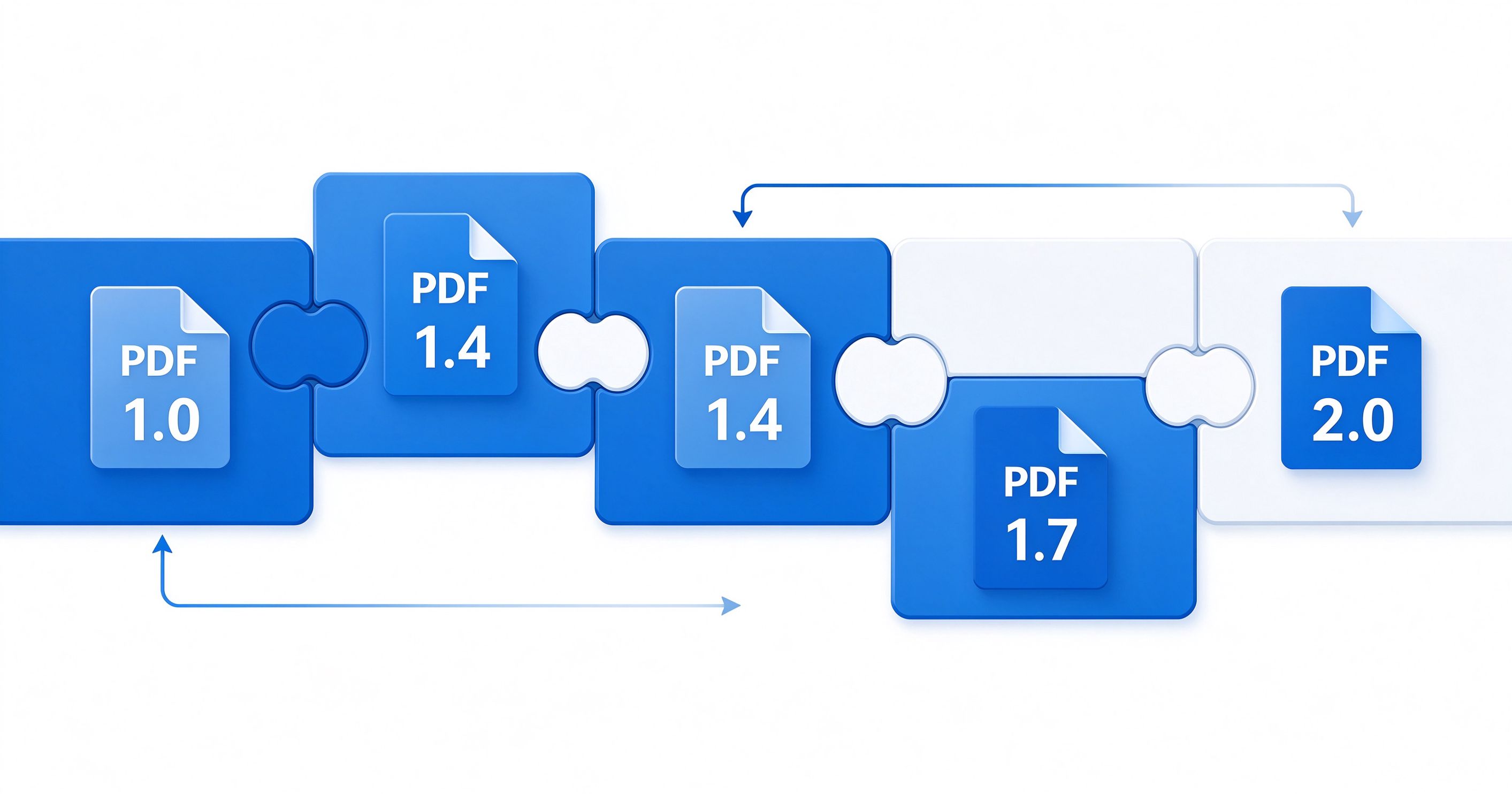
Have you ever opened a PDF and seen a message like "This document was created with a newer version of PDF" or noticed that some features don't work in your viewer? The culprit is usually PDF version compatibility.
PDF has evolved significantly since its introduction in 1993. Each version added new features — but those features may not work in older PDF readers. This guide explains every PDF version, what it added, and how to ensure your PDFs work everywhere.
A Brief History of PDF Versions
PDF (Portable Document Format) was invented by Adobe Systems, led by John Warnock, in 1993. It was designed to solve a fundamental problem: documents looked different on different computers. PDF solved this by describing a page exactly — every character, every line, every image — so it renders identically anywhere.
Over the years, PDF has been updated multiple times:
| Version | Year | Key Features Added |
|---|---|---|
| PDF 1.0 | 1993 | Original release: text, images, basic fonts |
| PDF 1.1 | 1996 | Hyperlinks, device-independent color, encrypted PDFs |
| PDF 1.2 | 1997 | Interactive forms (AcroForms), JavaScript, better image compression |
| PDF 1.3 | 2000 | Digital signatures, ICC color profiles, 3D annotations (limited) |
| PDF 1.4 | 2001 | Transparency, JPEG2000 compression, tagged PDFs (accessibility), layers |
| PDF 1.5 | 2003 | Cross-reference streams, object streams, improved compression |
| PDF 1.6 | 2005 | 3D artwork (U3D), enhanced encryption, OpenType font embedding |
| PDF 1.7 | 2006 | XFA forms, improved 3D, better accessibility, became ISO standard (ISO 32000-1) |
| PDF 2.0 | 2017 | ISO 32000-2, removed deprecated features, improved encryption (AES-256), better Unicode |
What Version Is My PDF?
Method 1: Check in Adobe Acrobat Reader
- Open the PDF in Acrobat Reader
- File → Properties (or Ctrl+D / Cmd+D)
- Look for "PDF Version" in the Description tab
Method 2: Check in a Text Editor
- Open the PDF file in Notepad (Windows) or TextEdit (Mac)
- The very first line should say
%PDF-1.xwhere x is the version number - For example,
%PDF-1.7means PDF version 1.7
Method 3: Use Online Tools
Upload your PDF to an online tool like PDF24's "PDF Information" tool or ILovePDF's "Analyze PDF" to see detailed version info.
Which PDF Version Should I Use?
The best version depends on your needs:
PDF 1.4 (Maximum Compatibility)
Best for: General sharing, documents that need to open everywhere
- ✅ Works in virtually every PDF viewer ever made (post-2001)
- ✅ Supports transparency, JPEG2000, tagged PDFs
- ❌ Doesn't support newer features like 3D, XFA forms
Recommendation: Use PDF 1.4 for most documents unless you specifically need newer features.
PDF 1.7 (Good Balance)
Best for: Modern documents, forms, accessibility
- ✅ Supports all major features including digital signatures, forms, accessibility
- ✅ Works in all modern PDF viewers (Acrobat 8+, all current browsers, mobile apps)
- ❌ May have issues in very old viewers (pre-2006)
Recommendation: PDF 1.7 is the most common version today and a safe default for most use cases.
PDF 2.0 (Latest Standard)
Best for: Long-term archiving, security-conscious documents
- ✅ Latest ISO standard, improved security (AES-256 encryption)
- ✅ Better Unicode support, cleaner specification
- ❌ Not all viewers support it yet (though most modern ones do)
- ❌ Some older tools may not read PDF 2.0 files
Recommendation: Use PDF 2.0 if you need the latest security features or are creating long-term archives. For general sharing, PDF 1.7 is still safer.
PDF/A (Archiving Standard)
PDF/A isn't a version but a profile of PDF designed for long-term archiving. It's used by governments, libraries, and archives:
- PDF/A-1: Based on PDF 1.4, no transparency, no audio/video, all fonts embedded
- PDF/A-2: Based on PDF 1.7, allows transparency and JPEG2000
- PDF/A-3: Based on PDF 1.7, allows embedded files (e.g., Excel source data)
Use PDF/A if you need to ensure your document will be readable in 50+ years.
Common Compatibility Issues
Issue 1: "This document requires a newer version of PDF"
Cause: The PDF was created with a newer version than your viewer supports.
Solutions:
- Update your PDF viewer to the latest version
- Use a different viewer (browsers often support newer versions)
- Ask the sender to save the PDF in an older version (e.g., PDF 1.4)
- Convert the PDF to an older version using a tool (see below)
Issue 2: Transparency Shows as White Boxes
Cause: Transparency was introduced in PDF 1.4. Viewers older than that can't render transparency and show white boxes instead.
Solutions:
- Use a modern PDF viewer
- Flatten transparency before sharing (converts transparent elements to opaque)
- Save as PDF 1.3 or earlier (this automatically flattens transparency)
Issue 3: Form Fields Don't Work
Cause: The form might be XFA (introduced in PDF 1.7), which only works in Adobe products. Or the viewer doesn't support AcroForms.
Solutions:
- Use Adobe Acrobat Reader for XFA forms
- Ask the form creator to use AcroForm instead of XFA
- Print the form and fill it by hand, then scan
Issue 4: Fonts Look Wrong or Are Missing
Cause: The PDF uses fonts that aren't embedded, and your system doesn't have them.
Solutions:
- Use Adobe Acrobat Reader (has the best font substitution)
- Ask the sender to re-export with fonts embedded
- Install the missing fonts on your system
Issue 5: Digital Signatures Don't Validate
Cause: The signature uses an encryption algorithm not supported by your viewer, or the certificate chain is broken.
Solutions:
- Use Adobe Acrobat Reader (best signature support)
- Update to the latest viewer version
- Verify the signer's certificate is trusted
How to Convert PDF to an Older Version
Method 1: Adobe Acrobat Pro (Paid)
- Open the PDF in Acrobat Pro
- File → Save As Other → Reduced Size PDF
- Select "Make compatible with" → choose PDF 1.4 or 1.7
- Click OK → Save
Method 2: PDF24 Creator (Free, Windows)
- Download and install PDF24 Creator
- Open the "PDF" tool → "Change PDF version"
- Add your PDF
- Select target version (1.4, 1.5, 1.6, 1.7)
- Click Convert → Download
Method 3: Ghostscript (Free, Advanced)
Ghostscript can convert PDF versions via command line:
gswin64c -sDEVICE=pdfwrite -dCompatibilityLevel=1.4 -o output.pdf input.pdfReplace 1.4 with your target version and input.pdf with your file.
Method 4: Online Tools
- PDF24 Tools: "Change PDF version" tool — free, no registration
- ILovePDF: "Optimize PDF" allows version selection
- Sejda: "Compress" tool with version options
How to Check What Features a PDF Uses
To know which version your PDF actually needs (not just what the header says), you can analyze its features:
Adobe Acrobat Pro
- File → Save As Other → Reduced Size PDF
- The compatibility dialog shows which features require which version
Online Analyzers
- PDF24 "Analyze PDF": Shows version, features, fonts, images, and more
- SanityChecker (pdfcpu): Open-source PDF validator and analyzer
Command Line (pdfinfo)
If you have poppler-utils installed, run:
pdfinfo -meta yourfile.pdfThis shows PDF version, page count, encryption, and metadata.
PDF Version Best Practices
- Default to PDF 1.7: It's the most widely compatible modern version.
- Use PDF 1.4 for maximum compatibility: If sharing with unknown or older systems.
- Embed all fonts: This ensures text renders correctly regardless of viewer.
- Flatten transparency for old viewers: If sharing with pre-2001 systems.
- Use AcroForms, not XFA: XFA only works in Adobe products.
- Test before distributing: Open your PDF in multiple viewers (Acrobat, browser, mobile).
- Use PDF/A for archiving: Ensures long-term readability.
- Don't use PDF 2.0 yet for general sharing: Wait until all viewers support it.
- Keep the version header accurate: Don't claim PDF 1.4 if you're using 1.7 features.
- Compress with version awareness: Some compression tools upgrade the version unnecessarily.
PDF Version vs. PDF/A vs. PDF/X vs. PDF/E
You may encounter other PDF "flavors" — these are specialized profiles built on top of standard PDF versions:
| Profile | Purpose | Based On |
|---|---|---|
| General purpose | Any version | |
| PDF/A | Long-term archiving | PDF 1.4 (A-1), 1.7 (A-2/A-3) |
| PDF/X | Professional printing | PDF 1.3 (X-1a), 1.4 (X-3), 1.6 (X-5) |
| PDF/E | Engineering documents | PDF 1.6 |
| PDF/UA | Accessibility (Universal Accessibility) | PDF 1.7 |
| PDF/VT | Variable data printing | PDF 1.6 |
For most users, standard PDF (1.4 or 1.7) is all you need. The specialized profiles are for specific industries (printing, engineering, archives).
Frequently Asked Questions
Q: Do I need to worry about PDF version for everyday use?
Usually not. Most PDFs created today are PDF 1.4-1.7, and all modern viewers support these. You only need to think about versions if you're sharing with very old systems or using specialized features.
Q: Can I just change the version number in a text editor?
No! Changing the header from %PDF-1.7 to %PDF-1.4 doesn't actually convert the file — it just lies about the version. If the file uses 1.7 features, they'll still be there and may break in older viewers. Always use a proper conversion tool.
Q: What version does Microsoft Word export to?
Word's "Save as PDF" typically creates PDF 1.7 (or sometimes 1.5). It doesn't let you choose the version. If you need a specific version, convert after exporting.
Q: Is PDF 2.0 widely supported now?
As of 2026, most modern viewers (Adobe Acrobat DC, Chrome, Edge, Firefox, iOS, Android) support PDF 2.0. However, some older enterprise systems and specialized software may not. For maximum compatibility, PDF 1.7 is still the safest choice.
Q: Does PDF version affect file size?
Indirectly, yes. Newer versions support better compression (JPEG2000 in 1.4+, object streams in 1.5+), so PDFs saved in newer versions can be smaller. However, the difference is usually small — content (images, fonts) matters far more than version.
Q: What's the difference between PDF version and PDF/A?
PDF version (1.4, 1.7, 2.0) refers to the specification version. PDF/A is a profile or subset of PDF designed for archiving — it restricts certain features (no audio, no JavaScript, all fonts embedded) to ensure long-term readability. A PDF/A file is always based on a specific PDF version (e.g., PDF/A-1 = PDF 1.4).
Summary
PDF version compatibility doesn't have to be complicated. For 95% of users:
- Use PDF 1.7 as your default — it's modern and widely supported
- Use PDF 1.4 if sharing with older systems or unknown viewers
- Use PDF/A for long-term archiving
- Test your PDFs in multiple viewers before distributing
- Convert properly using real tools, not by editing the file header
By understanding PDF versions, you can ensure your documents open correctly for everyone, everywhere. For more PDF guides, explore our complete article library.